Month end for most Canadian small businesses looks the same: export a report, email a spreadsheet to the bookkeeper, answer questions about a discrepancy from three weeks ago. Connecting your POS to QuickBooks Online removes that ritual — sales, taxes and payment types post themselves, categorized, every day.
Key takeaways
- Daily sales, tax by rate, and payment types post automatically to QuickBooks Online.
- Configure your GST/HST and PST rates correctly in the POS first — the sync is only as accurate as your setup.
- Included in the SeroPOS Pro plan ($50/month); Xero is supported too.
- Connection uses secure OAuth — no password sharing, revocable anytime.
- Biggest win: reconciliation stops being archaeology.
What actually gets synced
| From your POS | Into QuickBooks |
|---|---|
| Daily sales totals | Income accounts by category |
| Tax collected (GST/HST, PST) | Corresponding tax codes |
| Payment types (cash, card) | Bank or clearing accounts |
| Discounts | Contra-revenue account |
| Refunds | Reversed against income |
The result is a set of books that reflect what actually happened at the till, day by day, rather than a monthly summary reconstructed from memory and a bank statement.
Getting Canadian tax right
This is the part worth slowing down for, because errors here are expensive at remittance time.
- Set your rates in the POS first. GST/HST varies by province; several provinces add PST or QST. Configure each rate correctly before connecting anything.
- Map each rate to the right QuickBooks tax code. A mismatch here means your filings are wrong even though your sales are right.
- Check zero-rated and exempt items. Basic groceries are zero-rated in Canada — if you sell a mix of prepared food and grocery items, this matters.
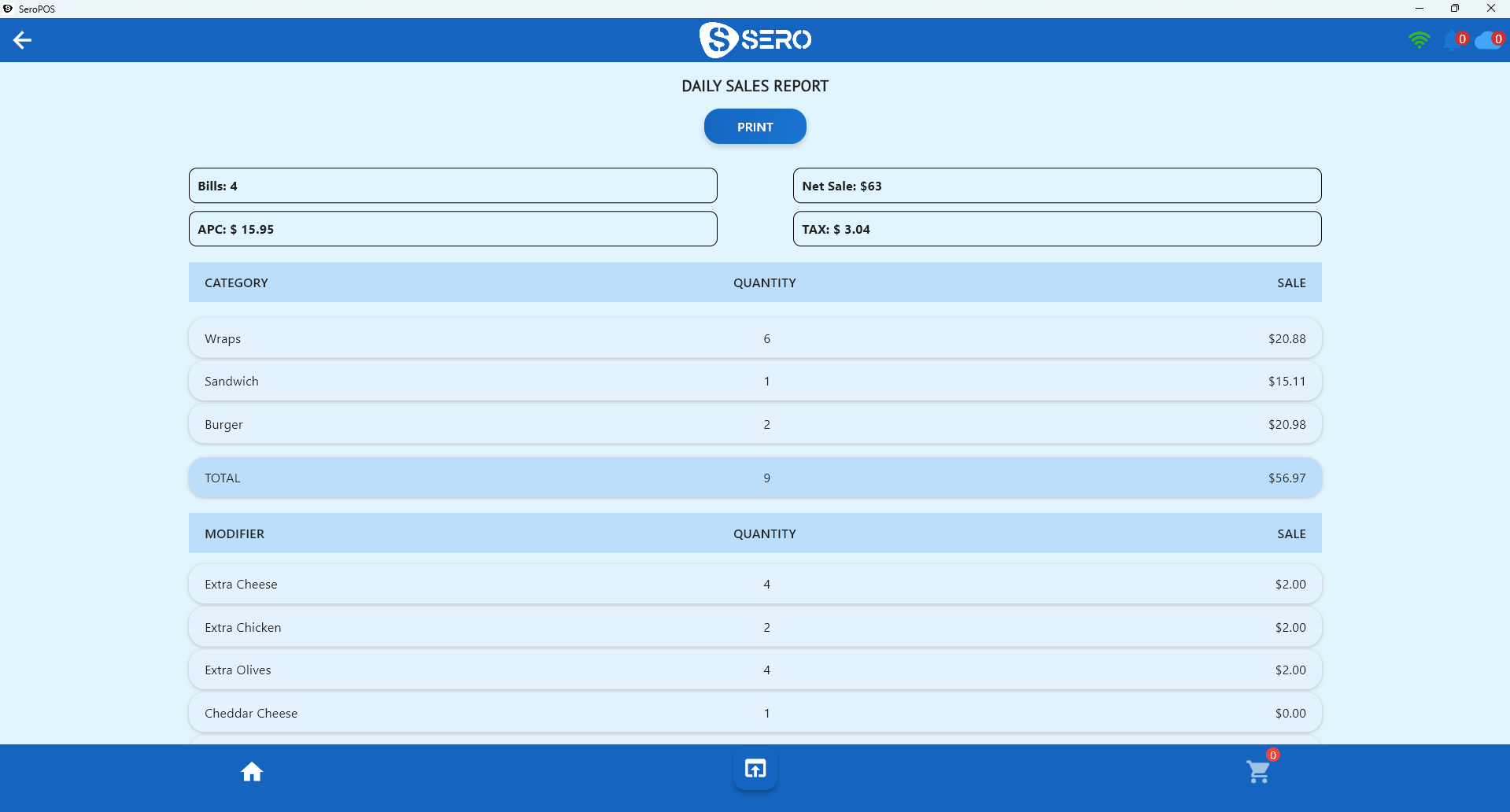
- Verify with a test day. Sync one day, then compare the POS daily report against what landed in QuickBooks, line by line, before trusting it.
Setting up the connection
- Confirm your tax setup in SeroPOS is correct and current.
- Connect QuickBooks Online from the integration screen — a secure OAuth sign-in, so no passwords are shared with the POS.
- Map your accounts — sales categories to income accounts, payment types to bank/clearing accounts, tax rates to tax codes. Sensible defaults get you most of the way.
- Run a test sync for one day and reconcile it manually.
- Switch it on and check weekly for the first month.
The QuickBooks integration page walks through the connection itself.
What it saves
For a typical single-location business:
| Task | Manual | With sync |
|---|---|---|
| Daily sales entry | 10–15 min/day | 0 |
| Month-end categorization | 2–4 hours | ~15 min review |
| Tax preparation | Hours of exports | Already categorized |
| Finding a discrepancy | Sometimes a full evening | Drill into the day |
Roughly five to eight hours a month for most small operators — and, more valuably, an end to the “what was this $340 deposit?” conversation.
Good habits once it’s connected
- Reconcile weekly for the first month, then monthly once you trust it.
- Don’t edit synced transactions in QuickBooks — fix the source in the POS so the two stay aligned.
- Re-check tax mapping whenever rates change or you add a location in another province.
- Keep your accountant in the loop — many prefer specific account structures, and it’s much easier to agree that upfront.
If you use Xero instead
Everything above applies; SeroPOS supports Xero synchronization on the same Pro plan. The mapping concepts are identical — sales to income accounts, tax to tax rates, payment types to bank accounts.
Where this fits in the bigger picture
Accounting sync is the last mile of a well-run operation. It’s most valuable when the data upstream is already good: accurate inventory, sensible reporting habits, and integrated payments so your card batches match your sales figures without manual matching.
Get those right and month end becomes a fifteen-minute review instead of a weekend.
Download SeroPOS and try the Pro plan — including QuickBooks and Xero sync — free for 14 days.